Only 1 file can be uploaded. Please compress multiple files.
File Name
File Size
Drag file here or click to upload.
File Name
Order Date
Estimate
Issue Date : 2021년 08월 04일 수요일
Dear
Supplier
Reg. Number
119-17-28654
Company
NAPLE
Representative
Jun-Kyu Lee
Address
B-324, 70 Dusan-ro, Geumcheon-gu, Seoul 08584, Korea (Hyundai Knowledge Industry Center)
Business Type
Manufacturing
Industry
Offset Printing
Phone
+82-2-6677-7330
Fax
+82-2-6677-7331
Below is our estimate.
Calculating...
Product 0 + Shipping 0 = Total: 00
Shipping Method :DHL eCommerce (DAP)
Payment :Bank Transfer (5% OFF)
Product :Flyer (Custom Run)
Order Qty :1sheets
Specifications :
Finishing :None
Design :None
Subtotal :0
- Notes -
In gang-run printing, a slight shortage in quantity may occur. In most cases, this is managed within 5%.
However, depending on production conditions — such as ink density from other orders printed simultaneously — in rare cases (approximately 2% of orders), shortages may reach up to 10%.
Est. shipping is 3-5 business days from proof approval.
Finishing adds 1-3 days to shipping.
We strive to meet estimated dates, but delays may occur.
공급가액 0 원 + 부가세(10%) 0 원 =
합계금액 0 원
ImportantNotice!
Color
Here are some helpful tips about print colors.
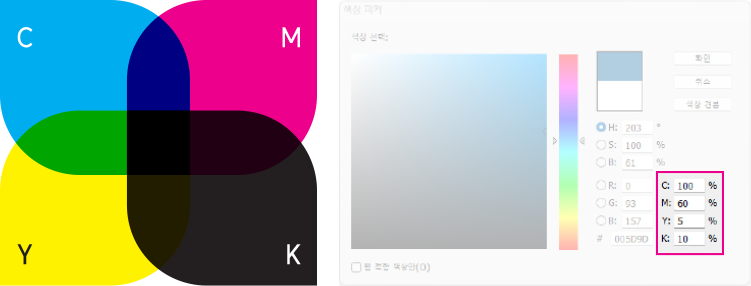
1. Printed colors will appear darker and less vivid than on your monitor.
Printing uses CMYK ink mixing, which works differently from the RGB light on your screen. An exact match between monitor and print is technically not possible.
Files submitted in Spot Color or RGB mode will be automatically converted to CMYK. This conversion may result in noticeable color shifts.
Due to the nature of offset printing, colors may print slightly lighter or darker, and minor variation between C (Cyan), M (Magenta), Y (Yellow), and K (Black) channels is expected.
Even with the same file, color results may vary depending on paper type and print timing.
Large areas of dark background color may show roller marks.
The front and back sides may appear slightly different in tone, even when the same color is used in the design file.
2. Colors with similar CMYK ratios or sensitive tones may print very differently.
Small differences in CMYK values can result in noticeably different printed colors. Color evaluation is based on your submitted file, not the printed result.
Color variation example: C=61%, M=52%, Y=52%, K=22%
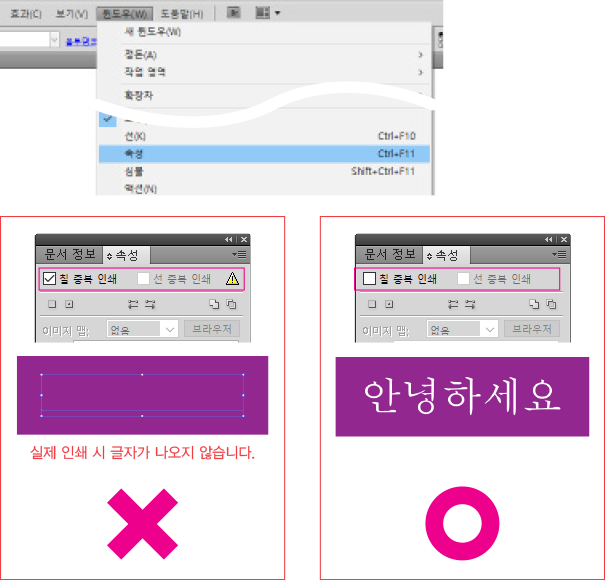
3. K=100% black is processed with overprint enabled.
If you do not want overprint applied, add 1% of another color to the black, or set the value to K=99%.
< Overprint K=100% >
< No Overprint >
< Rich Black (C=30% + M=30%) >
< Overprint Examples >
4. Patterns and textures require sufficient contrast with the background.
We recommend at least 20–30% color difference from the background.
< 10% Color Difference >
< 20%+ Color Difference >
< Patterns & Textures >
5. Use caution with text and lines made of mixed CMYK colors.
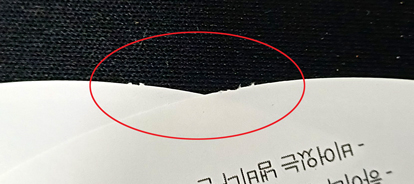
Slight misregistration between color plates may cause colors to spread or shift. This is more noticeable with thinner text and lines.
On dark backgrounds made of mixed CMYK colors, misregistration can cause thin elements to break up or disappear entirely.
For black text and lines, please use pure black (K=100%) only — not a mix of CMYK colors.
Even in a single color, extremely thin text or lines may not reproduce clearly in print.
6. Total CMYK ink coverage should be kept below 250%.
Higher ink density increases the risk of ink offset — where wet ink transfers onto adjacent sheets.
Pages may stick together, or ink may peel away from the surface.
For deeper tones, increase the K (Black) percentage rather than raising CMY values.
Depending on paper type and printing method, ink offset can occur even below 250%.
Very high ink density may result in muddy dark tones or visible roller marks.
Cutting
Here's what you should know about the cutting process.
A cutting tolerance of approximately ±1–3 mm (0.039–0.118 in) is standard in the industry.
Because large quantities are cut at once, slight shifting may happen during the process.
Please keep all important content and text at least 3 mm (0.118 in) inside the trim line on all sides. For catalogs and pamphlets, a margin of at least 5 mm (0.197 in) on each side is recommended.
Borders and symmetrical designs will not be cut perfectly evenly due to the nature of the cutting process.
Slight diagonal cuts may occur as a result of shifting.
Finishing
Please note the following about finishing.
A finishing tolerance of approximately ±1–2 mm (0.039–0.079 in) is standard in the industry.
Die-Cutting and Manual Finishing
Due to the nature of high-speed automated die-cutting, small structural nicks (connection points) are intentionally left along the cut edges to prevent product displacement and damage.
After die-cutting, a manual finishing process is performed to remove excess material before shipment.
The number and placement of nicks may vary depending on material type, thickness, and die-cut shape.
Depending on paper type, thickness, and coating characteristics, marks may remain along the cut edges. Thicker paper tends to produce more visible marks.
These are a standard result of the manufacturing process, not defects, and can be easily removed before use.
For flat print products such as business cards, tags, and coupons, nicks will remain visible on the cut edges.
For envelopes and packaging, nicks are positioned to be concealed inside during assembly (gluing), though some may remain visible depending on the product structure.
Quantity
Here's our guide to individual-run printing quantities.
Orders are fulfilled at or above the ordered quantity.
Cancellation & Refund Policy
Here is our refund policy for custom-made products.
All products are custom-manufactured to order. Refunds based on a simple change of mind are not available once production has begun.
Payment processing fees and related financial charges may be deducted for international orders.
To request a cancellation, please submit a 1:1 inquiry on our website.
Before design preview
Full refund available.
During production
Partial refunds may apply depending on the stage of production.
Before shipping
Only the shipping fee is refundable.
SoftwareSetup Guide
InDesign
Document Size
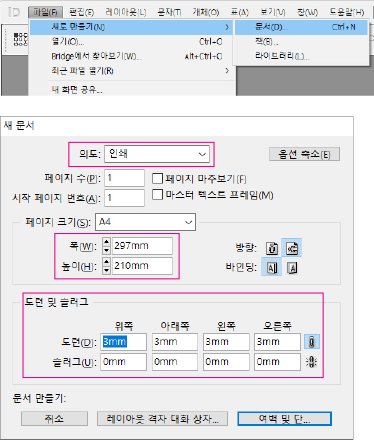
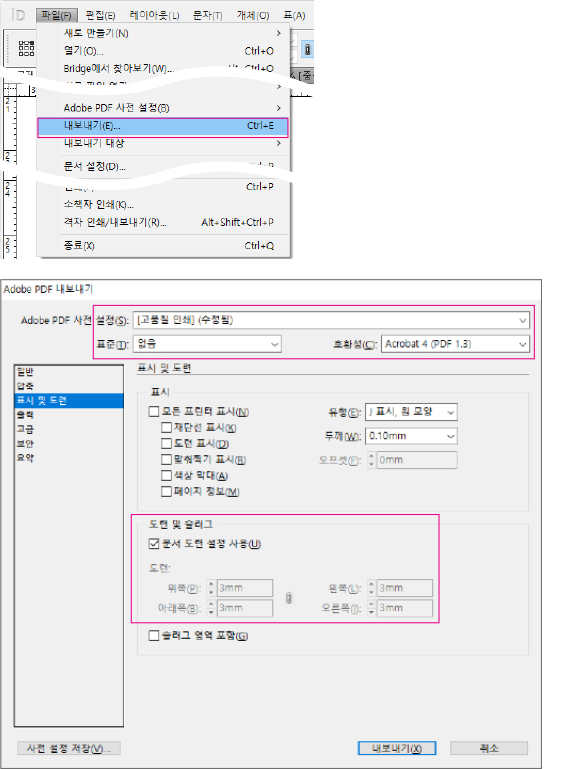
Create a new document and set the size for your print product. Set the trim size as page size, and configure the bleed for design size.
Set up safety margins to keep important content from being cut off. Use 3mm for small items (business cards, tags, coupons) and 5mm or more for larger items (flyers, pamphlets, catalogs).
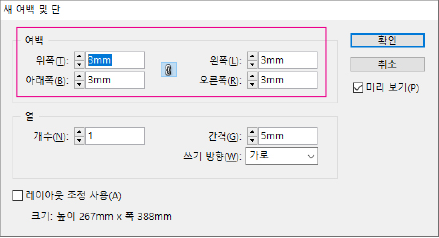
Layout → Margins and Columns
Margins: 3mm (all sides)
PDF Export
After completing your design, export as PDF with the following settings.
File → Export (Ctrl+E)
Format: Adobe PDF (Print) | Preset: PDF/X-4:2008 | Marks and Bleeds: Use Document Bleed Settings
Illustrator
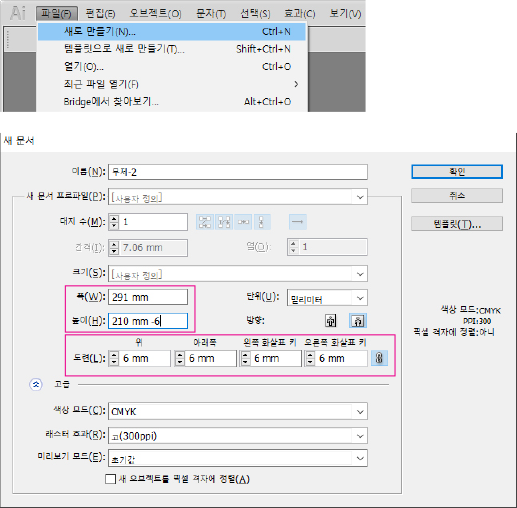
Document Size
Create a new document and set the size for your print product. Set width and height based on safety zone size. Add 3mm to each side for trim size (if using 3mm safety zone). Add 6mm for bleed (accounting for the 3mm safety zone). Use 3mm for small items and 5mm or more for larger items.
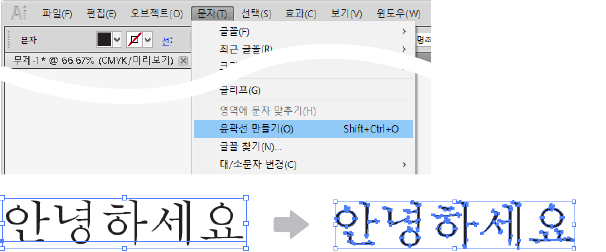
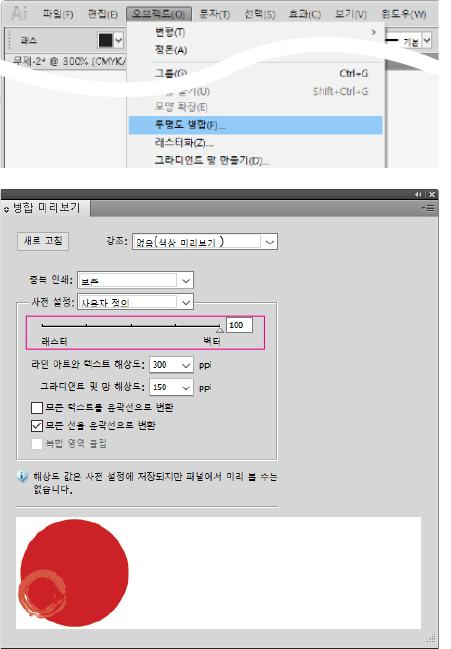
Objects using transparency effects must be flattened (Vector 100%).
Object → Flatten Transparency
Raster/Vector Balance: 100 (Vector) | Line Art and Text Resolution: 300 ppi | Gradient and Mesh Resolution: 150 ppi | Convert All Strokes to Outlines: checked
Rasterize Effects
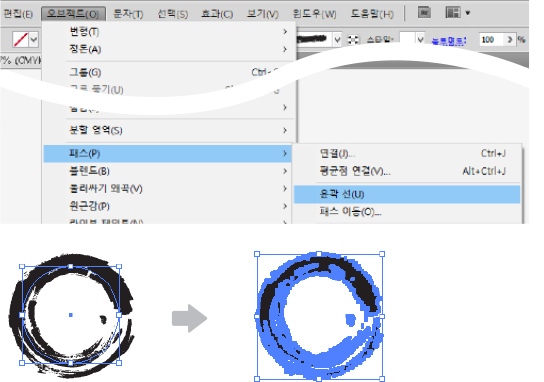
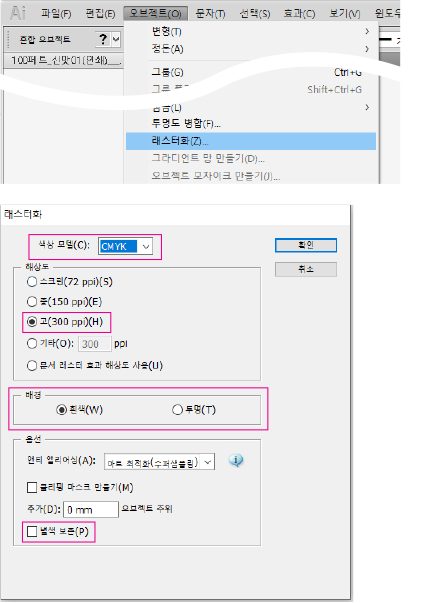
Gradients, transparency, and other effects must be rasterized (converted to image).
Object → Rasterize
Color Model: CMYK | Resolution: High (300 ppi) | Background: White / Transparent
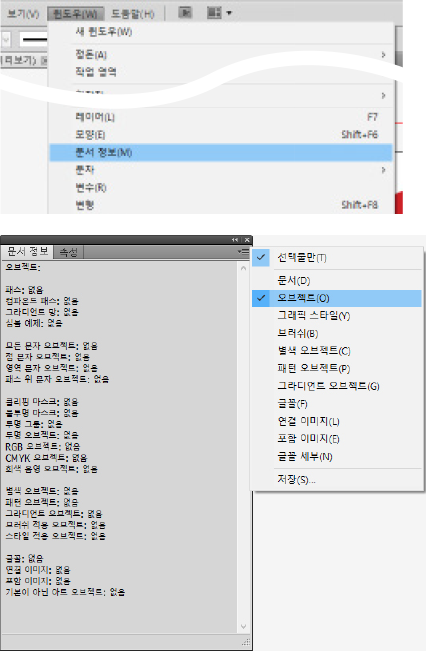
Check Document Info
Use Document Info to check for potential print issues. Click Objects in the panel menu. Items should show 'None' to avoid errors. If numbers appear, find and fix those objects using the methods above.
Window → Document Info
Panel menu (☰) → Objects
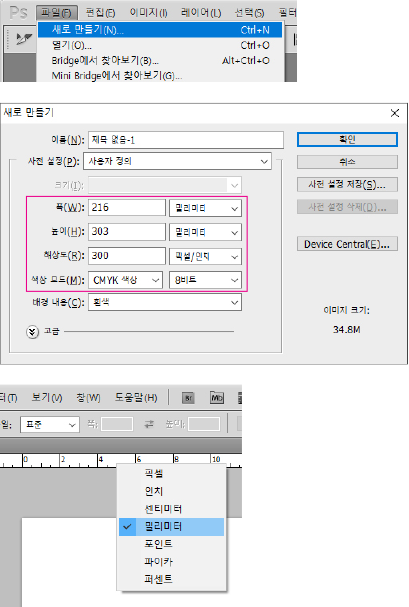
Photoshop
Document Size
Create a new document and set the size for your print product. Resolution must be 300 pixels/inch or higher, and color mode must be CMYK. Low resolution source files cannot be improved by increasing resolution settings. If your work is low resolution, you must start over with high resolution files.
File → New (Ctrl+N)
Width: 216mm, Height: 303mm | Resolution: 300 Pixels/Inch | Color Mode: CMYK Color, 8 bit | Background Contents: White
Country/Currency - Your preferences are remembered.
Analytics - Used for visitor statistics.
HENEX - AI Print Consultant
Hello! I'm HENEX, your AI print consultant. 👋
Ask me about quotes, product specs, order tracking, and more.
💡 Conversations are used for AI learning and service improvement. ⚠️ Do not enter personal info (email, phone, address, name, ID, card number, etc.). It may be sent to AI.
🏷️ Sticker/Label
📄 Flat Print
💼 Cards/Coupons
✉️ Envelope/Package
📘 Books/Catalogs
🖼️ Large Format
📦 Order/Inquiry
⚠️ Do not enter personal info (name, phone, email, address, etc.).