Upload File
Only 1 file can be uploaded.
Please compress multiple files.
File Name File Size
Upload File

Drag file here or
click to upload.

Stickers > Large Format > Die-Cut Sticker

Paper color may differ from monitor display.
Material Guide ×
재질 이미지
Size
  • Cut Size
  • Width
  •  x 
  • Height
  • mm
  • Design Size
  • Width
  •  x 
  • Height
  • mm
Paper
Print Color
Quantity
  • sheets
  •  x 
  • types
Select Coating
Cut Type
Ship Date Est. shipping is 3-5 business days from proof approval.
Finishing adds 1-3 days to shipping.

We strive to meet estimated dates, but delays may occur.

Add-on Items

Stand
  • pcs
Important Notice!
Color
Here are some helpful tips about print colors.
1. Printed colors will appear darker and less vivid than on your monitor.
Printing uses CMYK ink mixing, which works differently from the RGB light on your screen. An exact match between monitor and print is technically not possible.
Files submitted in Spot Color or RGB mode will be automatically converted to CMYK. This conversion may result in noticeable color shifts.
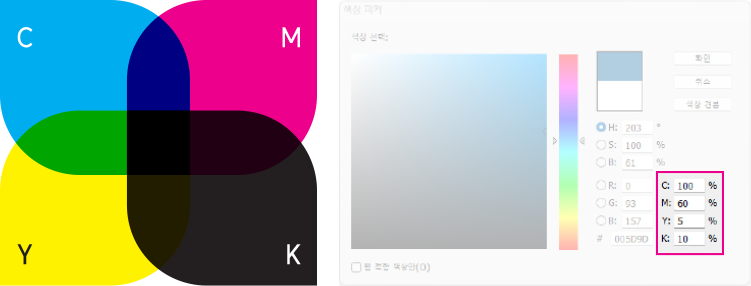
CMYK 4 Primary Colors
2. Colors with similar CMYK ratios or sensitive tones may print very differently.
Small differences in CMYK values can result in noticeably different printed colors. Color evaluation is based on your submitted file, not the printed result.
Color variation example:
Color variation example: C=61%, M=52%, Y=52%, K=22%
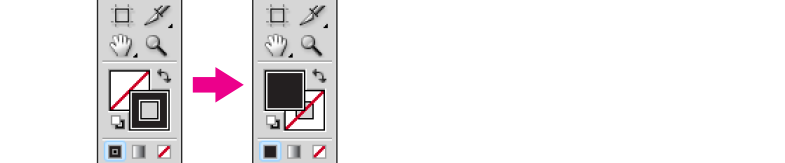
3. K=100% black is processed with overprint enabled.
If you do not want overprint applied, add 1% of another color to the black, or set the value to K=99%.
Overprint K=100%
< Overprint K=100% >
No Overprint
< No Overprint >
Rich Black (C=30% + M=30%)
< Rich Black (C=30% + M=30%) >
< Overprint Examples >
4. Patterns and textures require sufficient contrast with the background.
We recommend at least 20–30% color difference from the background.
10% Color Difference
< 10% Color Difference >
20%+ Color Difference
< 20%+ Color Difference >
< Patterns & Textures >
5. Use caution with text and lines made of mixed CMYK colors.
  • Slight misregistration between color plates may cause colors to spread or shift. This is more noticeable with thinner text and lines.
  • On dark backgrounds made of mixed CMYK colors, misregistration can cause thin elements to break up or disappear entirely.
  • For black text and lines, please use pure black (K=100%) only — not a mix of CMYK colors.
  • Even in a single color, extremely thin text or lines may not reproduce clearly in print.
6. White ink is semi-transparent. UV white is the most opaque with slight texture.
White opacity: UV > Solvent
Adhesion
Here's what you should know about sticker adhesion.
Adhesion performance varies depending on usage conditions.
Sticker adhesion is affected not only by the material manufacturer's specifications, but also by the surface material, temperature, humidity, and other environmental factors of the application site.
Even with the same material, adhesion properties may change over time after application, so choosing the right material for your intended use is important.
We recommend testing with a small order instead of sample books.
Since adhesion performance changes over time, testing with actual products is more accurate than using older sample books.
Our unit prices are affordable, so we recommend placing a minimum quantity order first to test in your actual environment before proceeding with the full run.
Important Note for Bulk Orders
Exchanges and refunds are not available for adhesion-related issues on bulk orders placed without prior testing.
File Requirements
Please note the following when ordering die-cut photo stickers.
All lines except cut lines must be converted to shapes (outlined).
  • All lines except cut lines must be converted to shapes as shown belowbefore uploading.
  • (Cut lines must remain as lines.)
  • Lines not converted to shapes will cause print errors.
All lines except cut lines must be converted to shapes (outlined).
For rounded shapes smaller than 20mm
  • Cutting may be slightly off-center as shown below.
  • If this is not acceptable, please choose 'Rectangle' or 'Square' cutting.
For rounded shapes smaller than 20mm
Quantity
Here's our guide to individual-run printing quantities.
Orders are fulfilled at or above the ordered quantity.
Cancellation & Refund Policy
Here is our refund policy for custom-made products.
All products are custom-manufactured to order. Refunds based on a simple change of mind are not available once production has begun.
Payment processing fees and related financial charges may be deducted for international orders.
To request a cancellation, please submit a 1:1 inquiry on our website.
Before design preview
  • Full refund available.
During production
  • Partial refunds may apply depending on the stage of production.
Before shipping
  • Only the shipping fee is refundable.
Software Setup Guide
InDesign InDesign
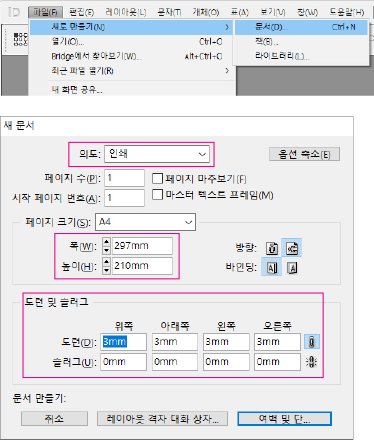
Document Size
Create a new document and set the size for your print product. Set the trim size as page size, and configure the bleed for design size.
File → New → Document (Ctrl+N)
Intent: Print | Page Size: A4 (210×297mm) | Bleed: 3mm (all sides) | Slug: 0mm
Document Size
Margin Settings
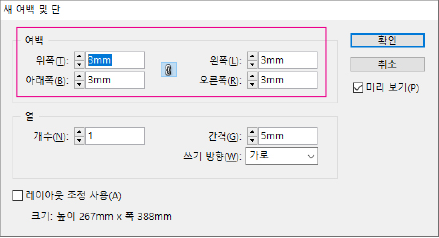
Set up safety margins to keep important content from being cut off. Use 3mm for small items (business cards, tags, coupons) and 5mm or more for larger items (flyers, pamphlets, catalogs).
Layout → Margins and Columns
Margins: 3mm (all sides)
Margin Settings
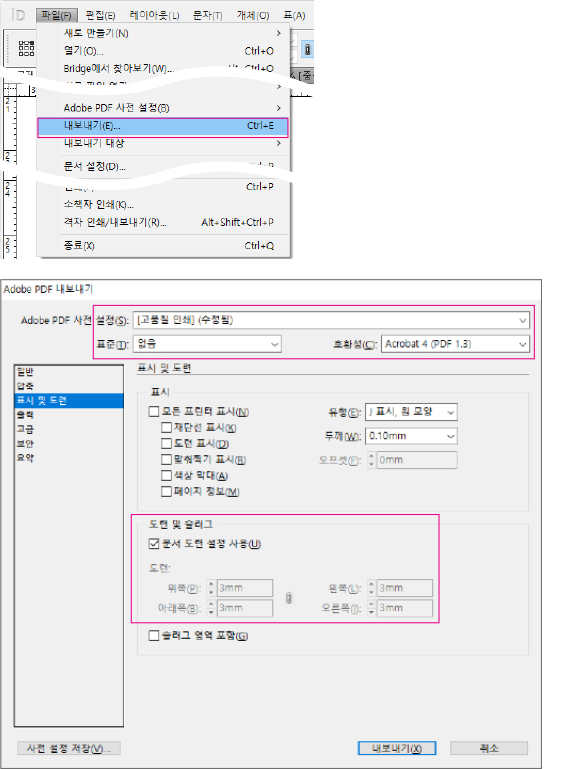
PDF Export
After completing your design, export as PDF with the following settings.
File → Export (Ctrl+E)
Format: Adobe PDF (Print) | Preset: PDF/X-4:2008 | Marks and Bleeds: Use Document Bleed Settings
PDF Export
Illustrator Illustrator
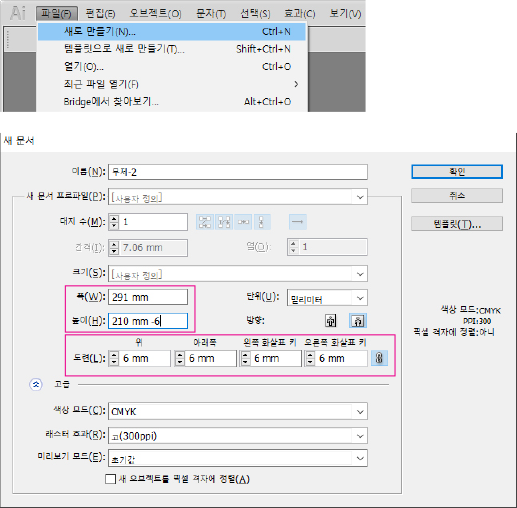
Document Size
Create a new document and set the size for your print product. Set width and height based on safety zone size. Add 3mm to each side for trim size (if using 3mm safety zone). Add 6mm for bleed (accounting for the 3mm safety zone). Use 3mm for small items and 5mm or more for larger items.
File → New (Ctrl+N)
Width: 297mm, Height: 210mm + 6mm | Bleed: 6mm (all sides) | Color Mode: CMYK | Raster Effects: High (300 ppi)
Document Size
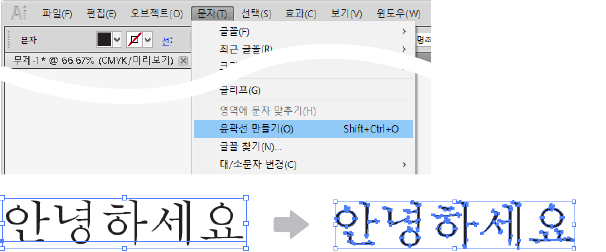
Convert Text to Outlines
All fonts must be converted to outlines.
Type → Create Outlines (Shift+Ctrl+O)
Convert Text to Outlines
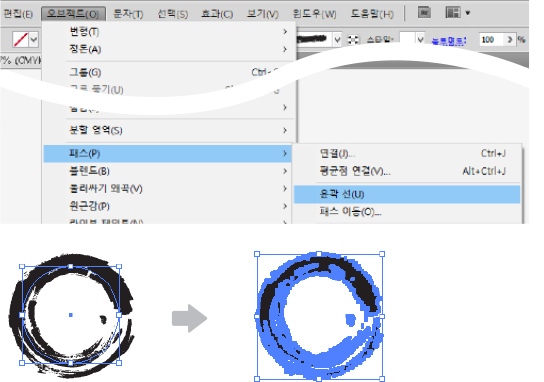
Convert Strokes to Outlines
All strokes must be converted to outlined paths.
Object → Path → Outline Stroke
Convert Strokes to Outlines
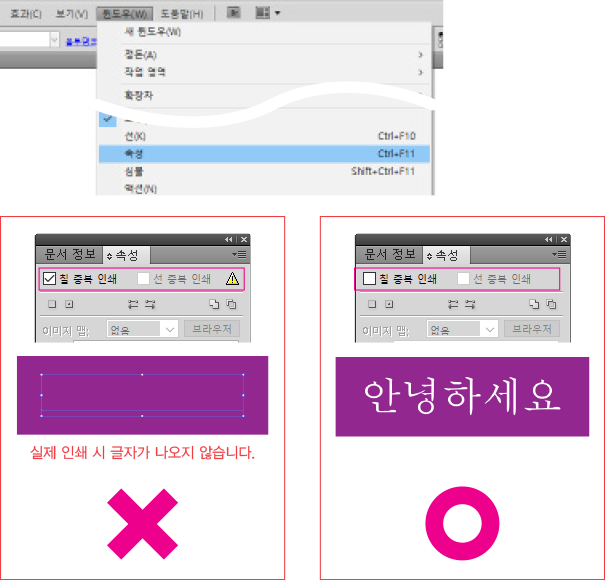
Overprint Settings
Make sure to turn off overprint for both fill and stroke.
Window → Attributes (Ctrl+F11)
Overprint Fill: unchecked | Overprint Stroke: unchecked
Overprint Settings
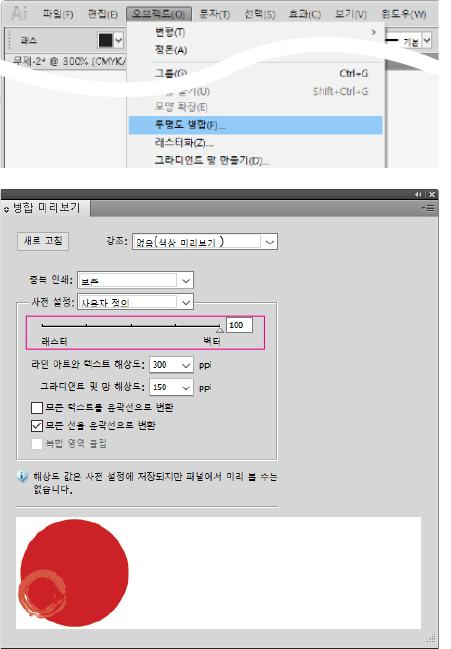
Flatten Transparency
Objects using transparency effects must be flattened (Vector 100%).
Object → Flatten Transparency
Raster/Vector Balance: 100 (Vector) | Line Art and Text Resolution: 300 ppi | Gradient and Mesh Resolution: 150 ppi | Convert All Strokes to Outlines: checked
Flatten Transparency
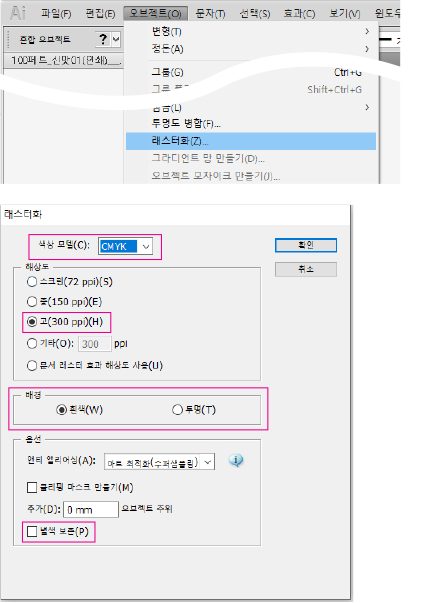
Rasterize Effects
Gradients, transparency, and other effects must be rasterized (converted to image).
Object → Rasterize
Color Model: CMYK | Resolution: High (300 ppi) | Background: White / Transparent
Rasterize Effects
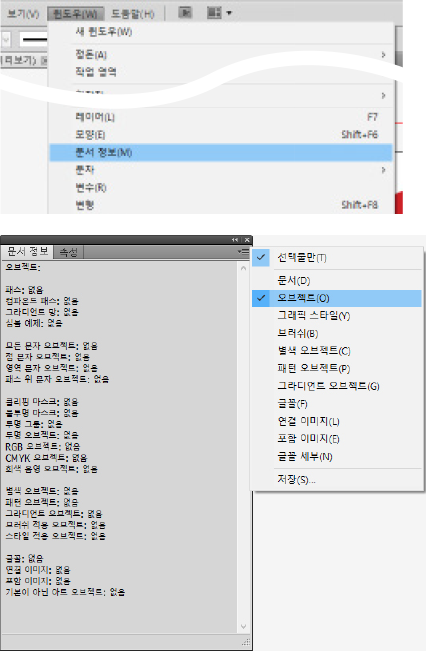
Check Document Info
Use Document Info to check for potential print issues. Click Objects in the panel menu. Items should show 'None' to avoid errors. If numbers appear, find and fix those objects using the methods above.
Window → Document Info
Panel menu (☰) → Objects
Check Document Info
Photoshop Photoshop
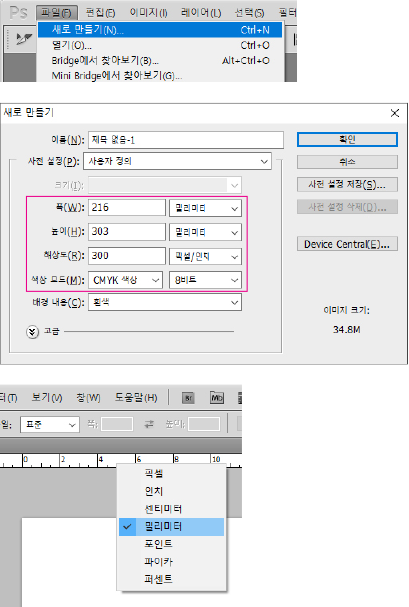
Document Size
Create a new document and set the size for your print product. Resolution must be 300 pixels/inch or higher, and color mode must be CMYK. Low resolution source files cannot be improved by increasing resolution settings. If your work is low resolution, you must start over with high resolution files.
File → New (Ctrl+N)
Width: 216mm, Height: 303mm | Resolution: 300 Pixels/Inch | Color Mode: CMYK Color, 8 bit | Background Contents: White
Right-click ruler → Millimeters (or Edit → Preferences → Units & Rulers)
Document Size
KR Domestic Korea
Korea
KR Domestic Korea
North America
US Ship to United States
CA Ship to Canada
East Asia
JP Ship to Japan
TW Ship to Taiwan
MN Ship to Mongolia
Southeast Asia
ID Ship to Indonesia
SG Ship to Singapore
MY Ship to Malaysia
TH Ship to Thailand
VN Ship to Vietnam
PH Ship to Philippines
BN Ship to Brunei
KH Ship to Cambodia
LA Ship to Laos
South Asia
IN Ship to India
BD Ship to Bangladesh
PK Ship to Pakistan
LK Ship to Sri Lanka
NP Ship to Nepal
MV Ship to Maldives
Western Europe
GB Ship to United Kingdom
DE Ship to Germany
FR Ship to France
IT Ship to Italy
ES Ship to Spain
NL Ship to Netherlands
CH Ship to Switzerland
BE Ship to Belgium
AT Ship to Austria
IE Ship to Ireland
PT Ship to Portugal
LU Ship to Luxembourg
Northern Europe
SE Ship to Sweden
NO Ship to Norway
DK Ship to Denmark
FI Ship to Finland
EE Ship to Estonia
LT Ship to Lithuania
LV Ship to Latvia
Eastern Europe
PL Ship to Poland
CZ Ship to Czech Republic
HU Ship to Hungary
RO Ship to Romania
SK Ship to Slovakia
BG Ship to Bulgaria
MD Ship to Moldova
Southern Europe
GR Ship to Greece
SI Ship to Slovenia
HR Ship to Croatia
CY Ship to Cyprus
BA Ship to Bosnia
AL Ship to Albania
MK Ship to North Macedonia
Oceania
AU Ship to Australia
NZ Ship to New Zealand
MU Ship to Mauritius
FJ Ship to Fiji
Middle East
SA Ship to Saudi Arabia
TR Ship to Turkey
AE Ship to UAE
QA Ship to Qatar
KW Ship to Kuwait
BH Ship to Bahrain
OM Ship to Oman
JO Ship to Jordan
LB Ship to Lebanon
EG Ship to Egypt
South America
BR Ship to Brazil
MX Ship to Mexico
AR Ship to Argentina
CL Ship to Chile
CO Ship to Colombia
PE Ship to Peru
EC Ship to Ecuador
PA Ship to Panama
CR Ship to Costa Rica
DO Ship to Dominican Republic
UY Ship to Uruguay
PY Ship to Paraguay
BO Ship to Bolivia
Africa
ZA Ship to South Africa
MA Ship to Morocco
NG Ship to Nigeria
KE Ship to Kenya
GH Ship to Ghana
TZ Ship to Tanzania
ET Ship to Ethiopia
UG Ship to Uganda
DZ Ship to Algeria
TN Ship to Tunisia
ZM Ship to Zambia
MZ Ship to Mozambique
DJ Ship to Djibouti
Central Asia
KZ Ship to Kazakhstan
UZ Ship to Uzbekistan
AZ Ship to Azerbaijan
GE Ship to Georgia
AM Ship to Armenia
KG Ship to Kyrgyzstan
South America
JM Ship to Jamaica
TT Ship to Trinidad and Tobago
GT Ship to Guatemala
BS Ship to Bahamas
BB Ship to Barbados
BM Ship to Bermuda
KY Ship to Cayman Islands
Southern Europe
RS Ship to Serbia
MT Ship to Malta
Northern Europe
IS Ship to Iceland
Western Europe
LI Ship to Liechtenstein
MC Ship to Monaco

Amount Due

Calculating...

NAPLE

  • Company : NAPLE, Customer Service : +82-2-6677-7330
  • Address : B-324, 70 Dusan-ro, Geumcheon-gu, Seoul 08584, Korea (Hyundai Knowledge Industry Center)
  • CEO : Jun-Kyu Lee
  • Business No. : 119-17-28654
  • Sales License : 2022-SEOULGEUMCHEON-2287
  • Privacy Officer : Jun-Kyu Lee, Email : cs@naple.co.kr

Copyrightⓒ2021 (C)NAPLE All Rights Reserved.

HENEX - AI Print Consultant
Hello! I'm HENEX, your AI print consultant. 👋
Ask me about quotes, product specs, order tracking, and more.

💡 Conversations are used for AI learning and service improvement.
⚠️ Do not enter personal info (email, phone, address, name, ID, card number, etc.). It may be sent to AI.
🏷️ Sticker/Label
📄 Flat Print
💼 Cards/Coupons
✉️ Envelope/Package
📘 Books/Catalogs
🖼️ Large Format
📦 Order/Inquiry
⚠️ Do not enter personal info (name, phone, email, address, etc.).